Air-gapped enrollment
Standard enrollment registers your instance with plakar.io to
verify the owner email and retrieve your license. If your instance runs in an
air-gapped or PCI-DSS environment where outbound connections are not permitted,
use air-gapped enrollment instead. It enrolls the instance entirely from a
license issued by Plakar in advance, without the instance ever reaching out to
plakar.io.
Since an air-gapped instance cannot reach plakar.io for enrollment, it also
cannot reach it to fetch integrations and appliance components. Before
enrolling, set up a
self-hosted package repository so
the instance can retrieve these files from your own network instead.
From the sign-in step of the enrollment process, select Enroll with an offline license bundle to switch to air-gapped enrollment.
Getting a license
Contact us to request an offline license for your instance. Once you have it, paste it into the enrollment page, or load it directly from the license file. The instance validates the license locally, then uses it to create the organization and admin account described below.
Organization and admin account
Air-gapped enrollment creates the organization and the admin account in a single step, rather than as separate steps like in standard enrollment. Provide the required information then enroll the instance.
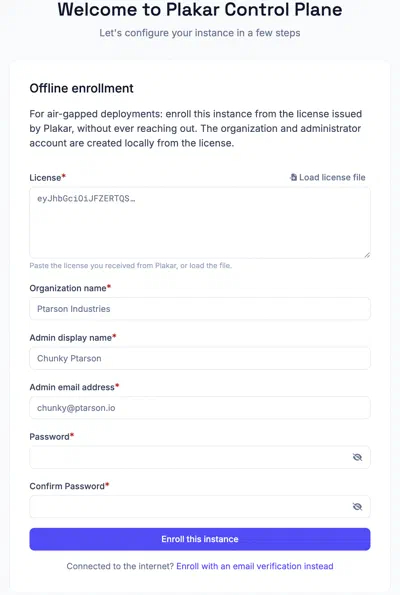
Because there is no owner email verification step in air-gapped mode, the admin account created here also acts as the instance owner.
This account holds the Superuser role, which is currently required to change Control Plane settings.
License renewal
Offline licenses includes an expiry date. You can view the current license, plan, and expiry date in the Control Plane settings.
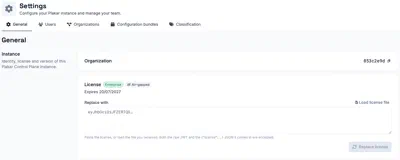
Unlike online instances, air-gapped instances do not renew their license automatically. To renew an offline license, contact us to obtain a new license for your instance. Then, in the Control Plane settings, paste the new license into the Replace with field or load it from a license file, and select Replace license.
Replacing the license does not require re-enrollment and does not affect your existing configuration or backups.