Enrollment
When you first access your Plakar Control Plane instance, you are taken through a one-time enrollment process. Enrollment registers the instance with Plakar, creates its root organization, and creates the first admin account. No backup data is ever transferred, only the consumption metrics needed for billing.
An instance is registered either with an email or with a license. Licenses come in two types, online and air-gapped, which gives three ways to enroll:
| Method | Reaches plakar.io |
Use it when |
|---|---|---|
| Yes | You are setting up a single instance by hand. | |
| Online license | Yes | You are enrolling several instances or automating enrollment. |
| Air-gapped license | No | The instance cannot make outbound connections. |
Email enrollment verifies an owner email with plakar.io, then asks you to
create the organization. It needs no license, but the verification has to be
repeated for every instance.
License enrollment uses a license that Plakar issues for your organization. The same license can enroll many instances without any email verification. Contact us to get one. Both license types are entered the same way, and the instance detects which type it has been given:
- An online license still requires the instance to reach
plakar.io. - An air-gapped license is validated locally, so the instance never contacts
plakar.io. It suits air-gapped or PCI-DSS environments, needs a self-hosted package repository, and is renewed by hand. See air-gapped instances.
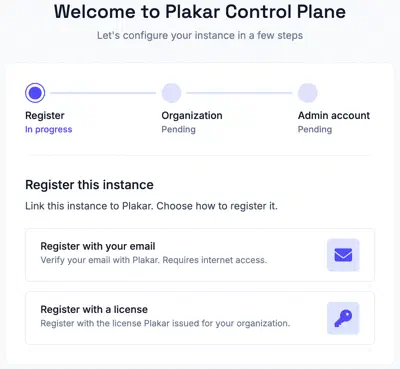
Registering the instance
Owner email
Enter an owner email address. This is the email plakar.io uses for billing,
license reporting, and any account-level communication. Ownership can be
transferred later if needed.
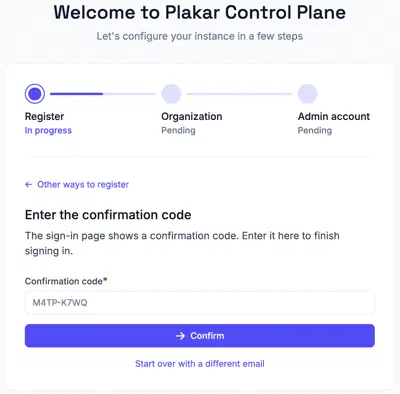
Confirmation code
A verification link is sent to the owner email. Opening it shows a confirmation code on the sign-in page. Enter that code on the setup page to confirm the email.
Organization
Create the root organization of the instance. This is the account that groups your backups, team members, and billing together. Use your company name or team name.
Paste the license into the setup page or load it from the license file. The instance detects whether it is an online or air-gapped license, then shows its organization, plan, mode, and expiry date. For an air-gapped license, read air-gapped instances before enrolling.
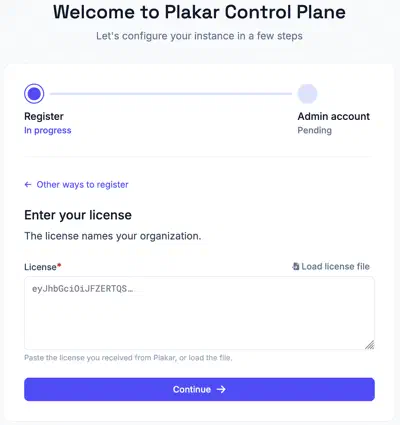
The license names your organization, so there is no separate organization step. If the license does not name an organization, you will be asked to enter one before continuing.
Admin account
The last step creates an admin account for this specific instance. This is a local account on the appliance, separate from the owner email. You can use the same email address or a different one.
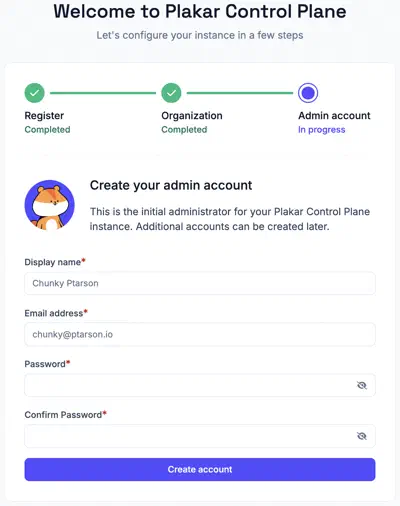
This account holds the Superuser role, which grants access to Control Plane settings and the license. The Platform Admin role grants the same access and can be assigned later.
Air-gapped instances
An air-gapped instance never reaches plakar.io. It enrolls entirely from its
license, which is validated locally. Since there is no owner email in this mode,
the admin account also acts as the instance owner.
The instance also cannot reach plakar.io to fetch integrations and appliance
components. Before enrolling, set up a
self-hosted package repository so
the instance can retrieve these files from your own network instead.
License renewal
Air-gapped licenses include an expiry date. You can view the current license, plan, and expiry date in the Control Plane settings.
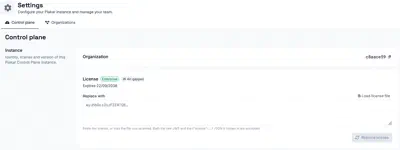
Unlike online instances, air-gapped instances do not renew their license automatically. To renew, contact us to obtain a new license. Then, in the Control Plane settings, paste the new license into the Replace with field or load it from a license file, and select Replace license. A Platform Admin can do this as well as the Superuser, since both hold the license permission.
Replacing the license does not require re-enrollment and does not affect your existing configuration or backups.