Store App
A store app is where backups are kept. Its resource, such as an S3 bucket or an SFTP server, holds a Kloset store, an encrypted and deduplicated repository of restore points. Backups write new restore points to the store, restores and syncs read them back, and checks verify their integrity.
Creating a store app
Store apps are created with Add Store, from the Stores tab of an inventory or from Infrastructure > Stores, which lists the store apps of every inventory. Creating one takes three steps.
General
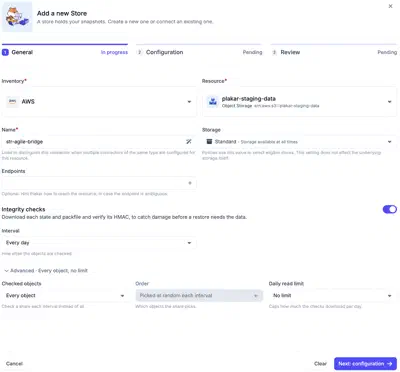
Select the inventory and the resource that holds the store, such as an S3 bucket, and provide a name for the store app. Then choose its storage type:
- Standard: the store is available at all times.
- Cold: the store uses archival storage, such as Amazon S3 Glacier, where data must be retrieved before it can be read.
- Offline: the storage is not connected, such as removed media.
The storage type tells the policies engine how the store behaves. It does not change the underlying storage. For S3, archival storage is configured through the storage class of the store, as described in Cold Storage on Amazon S3 Glacier.
Integrity checks are on by default for a new store. See integrity checks for the interval and the advanced settings on integrity checks.
Configuration
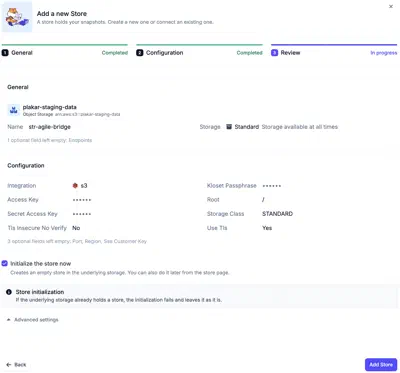
Select the integration, then fill in the passphrase of the Kloset store, followed by the fields of the integration. The way fields are filled works as for every app, as described in setting up an app.
Review
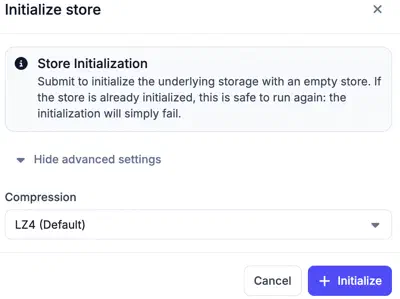
Check the settings of the store app before adding it. A store that does not exist yet at the location can be initialized right away, with the compression algorithm chosen in the advanced settings. It can also be initialized later from the store page, as described in testing and initializing.
Changing the resource
Changing the resource of a store app, while creating or editing it, can change the configuration that applies to it. Plakar Control Plane shows what the new resource changes and asks whether to keep the current configuration or to start again from the configuration bundle of the new resource. The passphrase is kept in both cases.
Testing and initializing
A store app only describes where backups go. The Kloset store itself is a structure that must exist at that location before anything can be written to it.
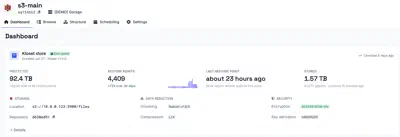
Test Connection, on the Dashboard tab of the app, checks that Plakar Control Plane can reach the location and reports whether a Kloset store is already there. A location that has held a store before is recognized and needs no further preparation.
A location that has never held a Kloset store, such as a new S3 bucket, must be initialized before it can receive backups. Initializing writes the store configuration to the location and leaves an empty store. It happens once per location and is not destructive. Initializing a location that already holds a store fails and leaves that store untouched.
Backups are compressed as they are written to the store, with an algorithm
chosen at initialization. LZ4 is the default. GZIP, ZSTD or SNAPPY can
be selected in the advanced settings, when creating the store app or in the
initialization dialog.
Choosing an algorithm
The algorithm is a tradeoff between storage space, compression speed and
decompression speed. LZ4 performs well on all three for most data, which is
why it is the default. SNAPPY can be faster on large, highly compressible
files. Keep the default unless a test on your own data shows another algorithm
performs better.
Once the store is initialized, the Operations card of its dashboard creates the tasks that act on it:
- Check: checks the restore points of the store.
- Backup: backs up a source to the store.
- Sync: synchronizes the store with another store.
- Restore: restores from the store to a destination.
The same card shows the last job, the success rate and the next planned run of the store, with its recent jobs.
Integrity checks
Plakar Control Plane can regularly download the objects of a store, its packfiles and states, and verify each one against its HMAC. A damaged object is found when it is checked, before a restore needs it.
Object names cannot be verified without decrypting the store. An object replaced by another under the same name is caught instead by comparing its HMAC with the one recorded at the previous check.
When to use integrity checks and check tasks
Integrity checks and check tasks answer different questions, and a store usually needs both.
An integrity check asks whether the storage still holds what was written to it. It verifies that each packfile and state matches its own HMAC, one object at a time, without reading the restore points. It runs continuously in the background, its reads can be capped, and it finds damage done by the storage itself, such as a corrupted or replaced object, soon after it happens.
A check task asks whether a restore point can be restored. It verifies the restore points themselves: their checksums, their indexes and that their file tree can be walked. It reads and decrypts all the data of the restore points it covers, and runs as a job, from a schedule or on demand.
Use integrity checks to watch the storage of every store. Use check tasks to prove that the restore points you depend on are complete, for example by checking the latest restore points after each backup with a short check window, and the whole store less often.
Configuring integrity checks
Checks are set per store app, in the Integrity checks card of its settings or in the General step when it is created:
- Interval: how often each checked object is checked again, from every hour to every year. A new store is checked every day. Stores that existed before integrity checks were introduced have them turned off until they are turned on.
- Checked objects: every object, or a share of them from 50% down to 1%.
- Order: which objects a share covers. Picked at random each interval draws a new sample at each interval. Oldest first and Newest first always cover the objects written first or last.
- Daily read limit: caps how much the checks download per day. A store larger than the limit is checked over several days. There is no limit by default.
Checks start after the first scan of the store. Checks only run on Standard stores, and are paused on Cold and Offline ones.
Choosing how much to check
Every check downloads the object it verifies. Checking more objects, more often, finds damage sooner but reads more from the storage, which can mean egress and request costs on a cloud provider and more load on the storage. Weigh how much reading the store costs against how long damage may go unnoticed.
The interval sets how long damage to an object can go unnoticed, until the next check of that object finds it. A short interval finds damage quickly, but reads the checked objects again each time.
The daily read limit keeps the cost predictable. A store larger than the limit is still checked in full, but over several days, so damage takes longer to find. The Integrity card shows how long a full cycle takes at the current limit.
Checking a share of the objects reads less at each interval, at the price of certainty. With a random share, each interval checks a different sample, so coverage grows over time without ever being complete. At 10% a day, for example, about 96% of the objects have been checked at least once after a month. A problem that damages many objects, such as a failing disk, shows up in the first samples. A single damaged object can go unnoticed for a long time. Checking every object is the only way to be sure each one is verified within a known time.
Newest first checks the objects written by the latest backups, to catch an upload that was damaged when being written to the storage. Oldest first checks the objects that have been in the store the longest. Unlike a random share, both always pick from the same end of the store. At 10% newest first, for example, only the newest 10% of the objects are ever checked, and the other 90% are never checked.
Monitoring integrity checks
The Integrity card on the dashboard of the store app shows the status of the checks, the current interval, how long a full cycle takes and the share of the store checked over a chosen period.
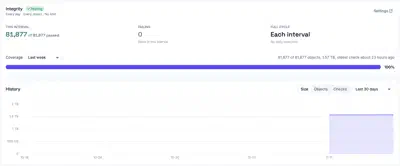
When an object fails its check or has been replaced, Plakar Control Plane raises a store integrity alert. It is sent by email and to webhooks subscribed to the Store integrity event.
Store structure
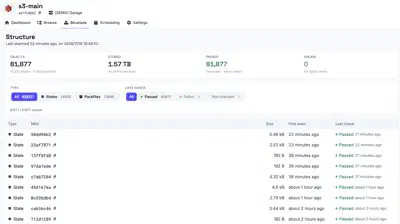
The Structure tab lists the objects the store holds, its states and packfiles, with the size of each and the result of its last integrity check. It can be filtered by object type and by check result, to find the objects that failed.
Browsing restore points
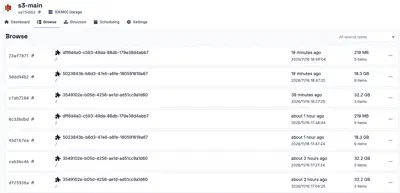
The Browse tab lists the restore points held in the store. A restore point can be opened to view its files and download individual files without a full restore. It can also be downloaded whole, checked, or placed under a legal hold.