Two-factor authentication
Two-factor authentication (2FA) adds an extra layer of security to your Plakar Control Plane account. After entering your password during login, you’ll also need to provide a time-based one-time password (TOTP) generated by an authenticator application.
Plakar Control Plane supports any authenticator application that implements the TOTP standard.
Enabling two-factor authentication
Two-factor authentication can be enabled from the Account page. Scan the QR code with your preferred authenticator application, or manually enter the setup key if you cannot scan the code.

Enter the code your authenticator application generates back into Plakar Control Plane. This confirms the authenticator is set up correctly, and two-factor authentication is only enabled once that code is accepted.
Plakar Control Plane then generates a set of recovery codes. Store these in a secure location. Each code can be used once to sign in if you lose access to your authenticator application.
Required by the organization
An organization can require two-factor authentication for all of its members. Members who do not have a second factor enrolled are required to set one up the next time they sign in. They must complete enrollment after entering their password and, when applicable, before completing a required password change, such as on their first sign-in after being invited.
Members who already have a second factor enrolled are not affected and can continue signing in as usual. Access to Plakar Control Plane is granted only after a required second factor has been enrolled.
Signing in
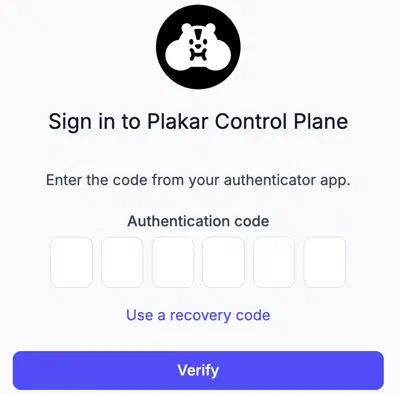
After entering your account and password, Plakar Control Plane prompts for the current verification code from your authenticator application. If the authenticator application is unavailable, you can sign in using one of your unused recovery codes instead.
Replacing your authenticator app
A second factor that is already enrolled can be replaced without disabling it first, this can be used moving to a new device or a different authenticator application. From the Account page, confirm the change with a valid verification code from the current authenticator application or one of your unused recovery codes, then enroll the new one exactly as described in enabling two-factor authentication. The previous authenticator application and recovery codes will no longer work once the new one is enrolled.
Disabling two-factor authentication
To disable two-factor authentication, return to Account, select Disable, and confirm the action with a valid verification code from your authenticator application or one of your unused recovery codes.
