Single Sign-On
Single sign-on lets people sign in to Plakar Control Plane with an account they already hold at an identity provider. Any provider that supports OpenID Connect can be used, such as Google, Okta, Entra ID, Keycloak or Auth0.
It is configured at two levels:
- Control Plane settings hold the providers, which are available to the whole instance.
- Organization settings tie email domains to a provider, which decides who signs in with it and which organization they join.
A provider that is added or changed is used from the next sign-in, with no restart.
Who manages single sign-on
A provider decides who can sign in to the instance, so managing single sign-on is reserved to the people who maintain the deployment. These are the members of the root organization who can change the Control Plane settings, such as the Superuser and Platform Admins.
The same rule applies to the email domains of every organization. Only the Superuser and Platform Admins can assign domains. An organization admin cannot set up the domains of their own organization. Other members cannot view or change the providers. Those who can view the organization settings see its domains, but cannot change them.
Adding a provider
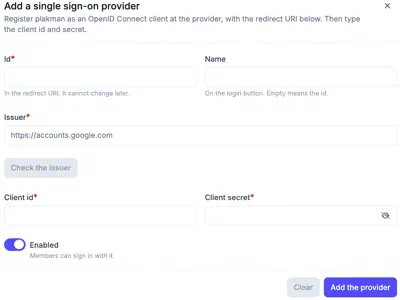
Plakar Control Plane is registered at the provider as an OpenID Connect client,
with the redirect URI https://<instance>/auth/sso/<id>/callback, where <id>
is the id chosen for the provider. The client id and secret the provider
issues are then entered in Plakar Control Plane, along with the issuer URL of
the provider, such as https://accounts.google.com.
Checking the issuer
Plakar Control Plane finds the endpoints of a provider through OpenID Connect discovery, from the issuer URL. Discovery can be run against the issuer before the provider is saved, and reports why it failed when it does.
Changing a provider
Every setting except the id can be changed, and the change applies from the next sign-in.
The identity of a person who signed in with a provider is tied to its issuer. Changing the issuer therefore stops the sign-ins of everyone who already signed in with that provider. Change it only to move to a new provider, not to correct how the same provider is written.
Disabling or deleting a provider
Disabling a provider stops the sign-ins with it at once, and it is no longer offered at sign-in. It keeps every setting, including the client secret, so it can be enabled again later.
Deleting a provider removes it with its secret. Adding it again needs a client secret from the provider. A provider cannot be deleted while an organization still assigns it email domains. Disable the provider instead, or remove it from the single sign-on settings of those organizations first.
Assigning email domains
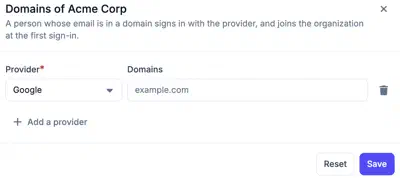
A provider is put to use by assigning it email domains in the organization settings of an organization, under Settings > Authentication. A person whose email address is in one of those domains signs in with that provider, and joins the organization at the first sign-in. Only the Superuser and Platform Admins can assign them, as described in who manages single sign-on.
An organization can use several providers, each with its own list of domains. A
domain is matched exactly against the part of the email address after the @,
in lowercase. Assigning example.com does not cover eu.example.com, which
must be assigned on its own. Domains are not inherited by sub-organizations.
Signing in
Every enabled provider is offered on the sign-in page, alongside sign-in with an account and password. See Signing In.
A sign-in is accepted only when the provider vouches that the email address is verified. Providers that do not report this are refused. The provider setup below notes where a provider needs extra configuration for it.
The first sign-in with a provider creates the account. A sign-in with an email address that already belongs to an account is refused, so a provider cannot take over an existing account. The person links the provider to their account instead.
Linking a provider to an account
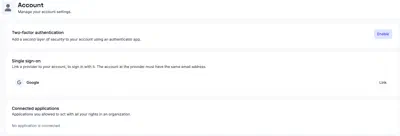
A person who already has an account links a provider to it from their Account page. From then on, they can sign in with that provider as well as with their existing methods.
A link is accepted only when the account at the provider has the same email address, and the person is a member of the organization that assigns that email domain to the provider. An identity at a provider can be linked to one account only.
Provider setup
Each provider registers Plakar Control Plane as a client, with the redirect URI of the provider, and issues a client id and a client secret.
In the Google Cloud console, create an OAuth client ID of the type Web
application, and add the redirect URI to its authorized redirect URIs. Use
https://accounts.google.com as the issuer.
Okta
In the Okta admin console, create an OIDC app integration of the type Web
Application, and add the redirect URI as a sign-in redirect URI. The issuer is
the URL of the Okta organization, such as https://example.okta.com.
Entra ID
In the Microsoft Entra admin center, register an application with a Web redirect URI, and create a client secret for it. The client id is the application id.
Use the issuer of the tenant,
https://login.microsoftonline.com/<tenant id>/v2.0. The common endpoint is
not supported.
Entra ID does not report whether an email address is verified by default. In
Token configuration, add the optional claim xms_edov to the ID token.
Without it, every sign-in with Entra ID is refused.
Keycloak
In the realm, create an OpenID Connect client with Client authentication on.
The client secret is in its Credentials tab. The issuer is the URL of the
realm, such as https://keycloak.example.com/realms/example.
Keycloak reports for each user whether the email address is verified. Users whose email is not marked as verified cannot sign in.
Auth0
In the Auth0 dashboard, create an application of the type Regular Web
Application, and add the redirect URI to its allowed callback URLs. The issuer
is the domain of the tenant with a trailing slash, such as
https://example.auth0.com/.