Scaleway Inventory
#The Scaleway inventory allows Plakar Control Plane to connect to your Scaleway account and discover resources in a Scaleway project.
Once connected, Plakar Control Plane discovers supported Scaleway resources and makes them available for management directly within Plakar Control Plane.
Supported Resources
#| Resource | Source | Store | Destination |
|---|---|---|---|
| Object Storage | Yes | Yes | Yes |
| Instances (with attached Block Storages) | Yes | No | Yes |
| Block Storage Volume | Yes | No | Yes |
| Secret Manager | Yes | No | Yes |
Authentication
#Scaleway inventories authenticate using an access key and secret key generated from a Scaleway IAM application.
When creating a Scaleway inventory in Plakar Control Plane, you must provide:
- Name for the inventory
- Project ID
- Access key
- Secret key
The access key and secret key should be generated from an IAM application with the permissions required to read resources in the Scaleway project you want to discover.
For more information on creating IAM applications, policies, and API keys, see Managing IAM Policies and API Keys on Scaleway.
Required Permissions
#Plakar Control Plane requires read access to Scaleway resources so it can discover and classify them during inventory synchronization.
The IAM application used by the inventory must have a policy with a rule scoped to Access to resources. The rule must include the project you want the inventory to discover.
Use the following permission set under the AllProducts category:
| Permission Set | Description |
|---|---|
AllProductsReadOnly |
Read access to all resources/products |
Scaleway projects are used to isolate resources. A Scaleway inventory in Plakar Control Plane is configured with a specific project ID, so it discovers resources from that project.
When creating the policy rule, make sure the selected project matches the project ID configured in the inventory. You can give the application access to multiple projects or all current and future projects, but the inventory will still use the project ID provided during setup.
For example, if you want separate inventories for production, staging, and testing, create one inventory per project. Each inventory can use API keys from an IAM application scoped only to the matching project.
Adding the Scaleway Inventory
#When creating a new Scaleway inventory, provide the inventory name, project ID, access key, and secret key.
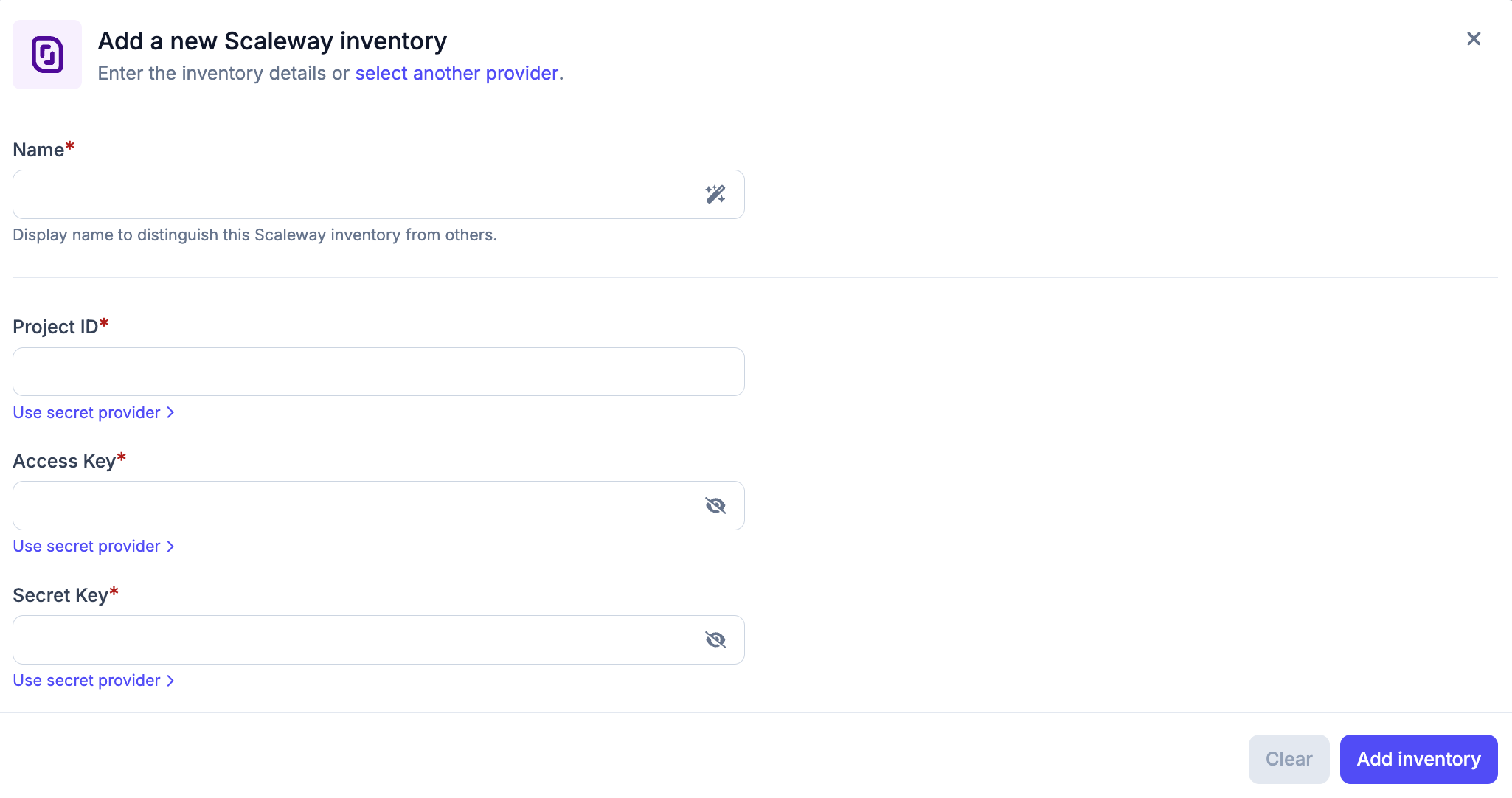
After creating the inventory, trigger a synchronization to discover and load resources from the configured Scaleway project. You can run synchronization again at any time to refresh the inventory, for example after creating new Object Storage buckets, Instances, or Block Storage volumes in Scaleway.
All configuration details provided during inventory creation can be updated later by clicking the settings icon in the top right of the inventory page, which opens a settings popup.
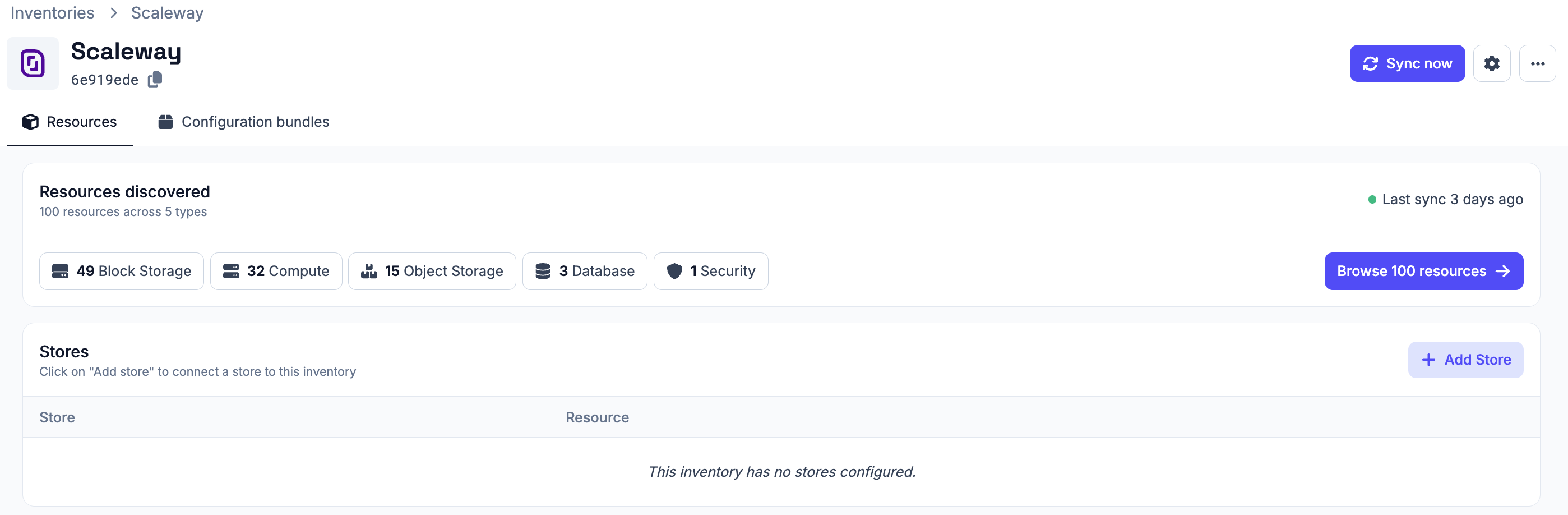
Managing Resources
#Resources in a Scaleway inventory are automatically discovered and synchronized. They are managed by the inventory and cannot be manually created or deleted from Plakar Control Plane.
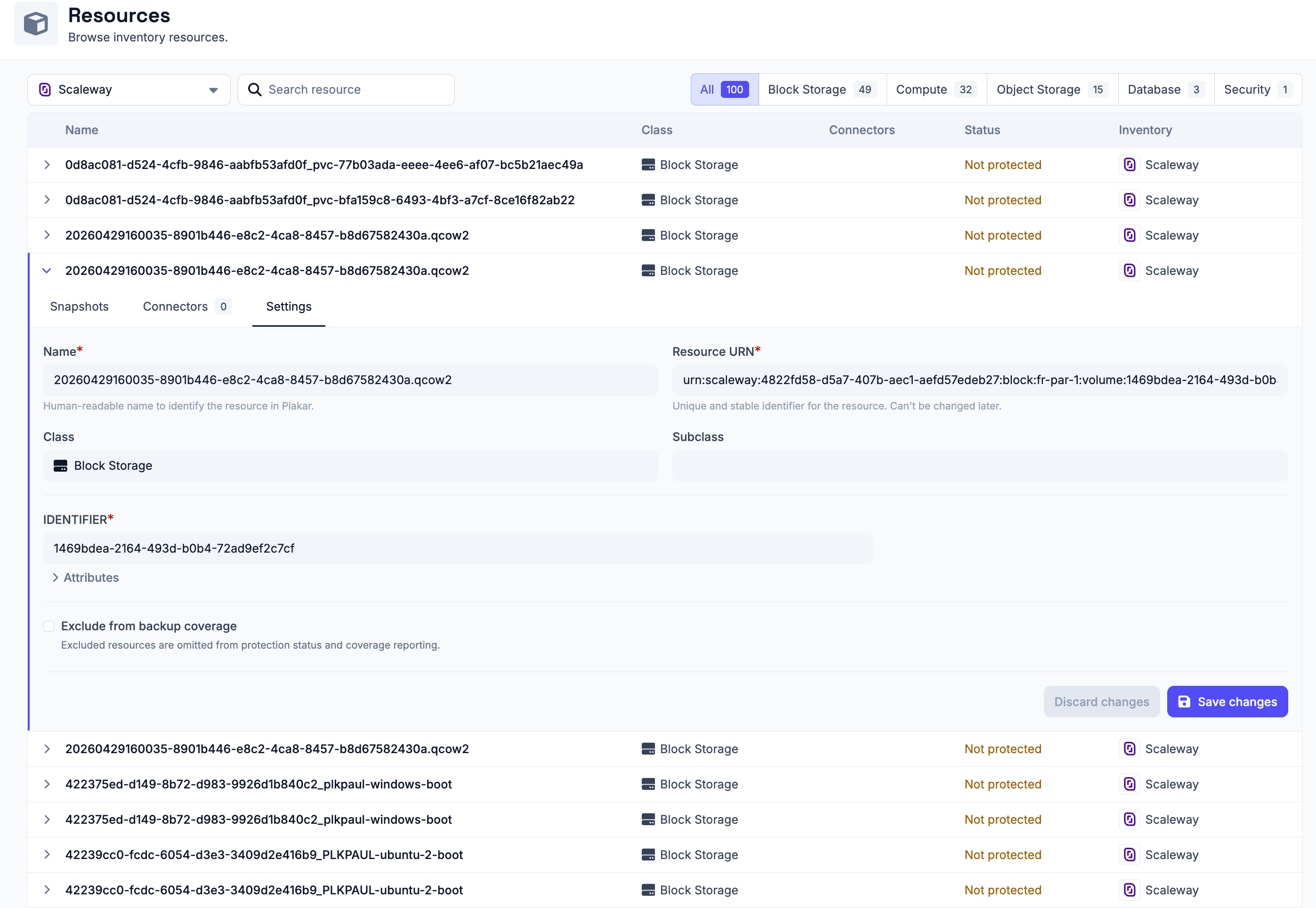
You can expand a resource row to view its details. Each row expands to show three tabs:
- Snapshots - lists backups taken for this resource
- Connectors - shows connectors associated with this resource
- Settings - configure the resource, including backup coverage
Backup coverage tracks how many of your resources are protected by backups. If a resource does not need to be backed up, for example a test Instance or temporary bucket, you can exclude it from coverage using the Exclude from backup coverage option in the Settings tab. Excluded resources are omitted from protection status and coverage reporting.