Backing Up an OVHcloud Managed PostgreSQL Database
This guide backs up an OVHcloud Managed PostgreSQL database using pg_dump
streamed through Plakar to OVHcloud Object Storage. The result is an encrypted,
deduplicated snapshot stored separately from your database infrastructure.
Architecture
flowchart TB

subgraph Client["Backup Client"]
  PGDump["pg_dump"]
  Plakar["Plakar
stdin integration"]
end

subgraph DB["OVHcloud Managed PostgreSQL"]
  Postgres["PostgreSQL"]
end

subgraph Storage["OVHcloud S3 Object Storage"]
  S3["Kloset Store
(Encrypted & Deduplicated)"]
end

Postgres -->|SQL dump| PGDump
PGDump -->|stdin| Plakar
Plakar -->|Snapshots| S3
Prerequisites
- OVHcloud account with billing configured
- Plakar installed on backup client
- PostgreSQL client tools (
pg_dump) - OVHcloud Object Storage bucket configured
Create PostgreSQL Database
Provision database
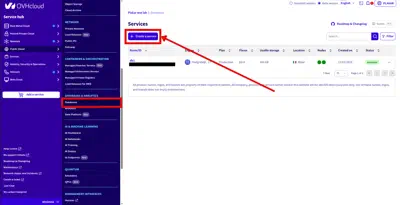
- Log in to OVHcloud Control Panel
- Go to Public Cloud → Databases & Analytics → Databases
- Click Create a service
- Configure:
- Database name
- Engine: PostgreSQL
- Version: 14-18 (OVHcloud supported)
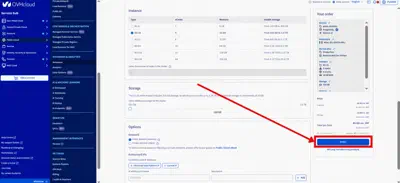
- Instance: Select vCores, memory, storage
- Network: Public network
- Click Order
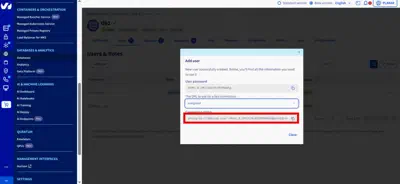
Create backup user
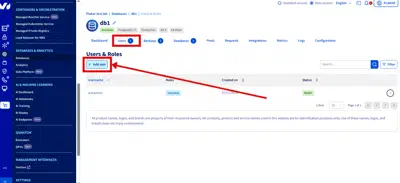
- Open PostgreSQL database in dashboard
- Go to Users tab
- Click Add user
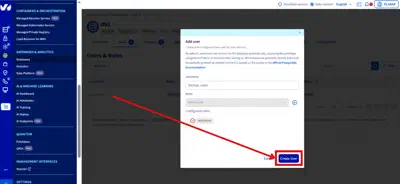
- Configure:
- Username:
backup_user - Role:
replication
- Username:
- Save connection string
Install Tools
Install PostgreSQL client:
$ sudo apt update
$ sudo apt install postgresql-client
Install Plakar using the installation guide.
Configure PostgreSQL Connection
Set environment variables from connection string:
$ export PGHOST=<DB_HOST>
$ export PGPORT=5432
$ export PGUSER=<DB_USER>
$ export PGPASSWORD=<DB_PASSWORD>
Test connection:
$ psql -X <DB_NAME>Exit with \q.
Configure Object Storage
Install S3 integration
$ plakar login -email you@example.com
$ plakar pkg add s3
Create Object Storage bucket
If not already configured, follow: OVHcloud Object Storage setup
Add Kloset store
$ plakar store add ovhcloud-s3-postgres \
  location=s3://<S3_ENDPOINT>/<BUCKET_NAME> \
  access_key=<ACCESS_KEY> \
  secret_access_key=<SECRET_KEY> \
  use_tls=true
Replace:
<S3_ENDPOINT>: e.g.,s3.eu-west-par.io.cloud.ovh.net<BUCKET_NAME>: e.g.,plakar-backups<ACCESS_KEY>and<SECRET_KEY>: From OVHcloud Control Panel
Initialize store
$ plakar at "@ovhcloud-s3-postgres" createBack Up Database
Run backup:
$ pg_dump <DB_NAME> | plakar at "@ovhcloud-s3-postgres" backup stdin:dump.sqlVerify:
$ plakar at "@ovhcloud-s3-postgres" lsRestore Database
Retrieve snapshot ID:
$ plakar at "@ovhcloud-s3-postgres" lsRestore:
$ plakar at "@ovhcloud-s3-postgres" cat <SNAPSHOT_ID>:dump.sql | psql <DB_NAME>Automate Backups
Create cron job for daily backups:
$ crontab -eAdd:
0 2 * * * pg_dump <DB_NAME> | plakar at "@ovhcloud-s3-postgres" backup stdin:dump-$(date +\%Y\%m\%d).sqlTroubleshooting
Connection refused
- Verify
PGHOST,PGPORT,PGUSER,PGPASSWORDenvironment variables - Check network access to managed database
Authentication failed
- Confirm backup user has
replicationrole - Verify password in connection string
S3 upload errors
- Check S3 credentials:
plakar store show ovhcloud-s3-postgres - Verify endpoint URL and bucket name
- Confirm bucket exists in OVHcloud dashboard
pg_dump not found
- Install PostgreSQL client:
sudo apt install postgresql-client