# Using Exoscale Compute as a Dedicated Backup Server
This guide configures an Exoscale Compute instance to automatically back up your
servers to Exoscale Object Storage (SOS). The setup uses Plakar to create
encrypted, deduplicated snapshots on a scheduled interval with web UI
monitoring.
## Architecture
- **Backup Compute**: Runs Plakar and schedules backups
- **Source servers**: Exoscale servers to back up
- **Exoscale Object Storage (SOS)**: Stores encrypted backups
{{< mermaid >}}
flowchart TB
subgraph Sources["Source Servers"]
Server1["Web Server 1"]
Server2["Web Server 2"]
ServerN["Server N"]
end
BackupCompute["Backup Compute
Plakar + Scheduler"]
subgraph Storage["Exoscale Object Storage"]
Kloset["Kloset Store
Encrypted & Deduplicated
Backup"]
end
Server1 -->|SSH/SFTP| BackupCompute
Server2 -->|SSH/SFTP| BackupCompute
ServerN -->|SSH/SFTP| BackupCompute
BackupCompute -->|Store Snapshots| Kloset
{{< /mermaid >}}
## Prerequisites
- Exoscale account with billing configured
- SSH keypair for instance access
- SSH access to source servers
- Basic familiarity with Plakar commands
## Create Object Storage Bucket
### Create bucket in Exoscale Portal
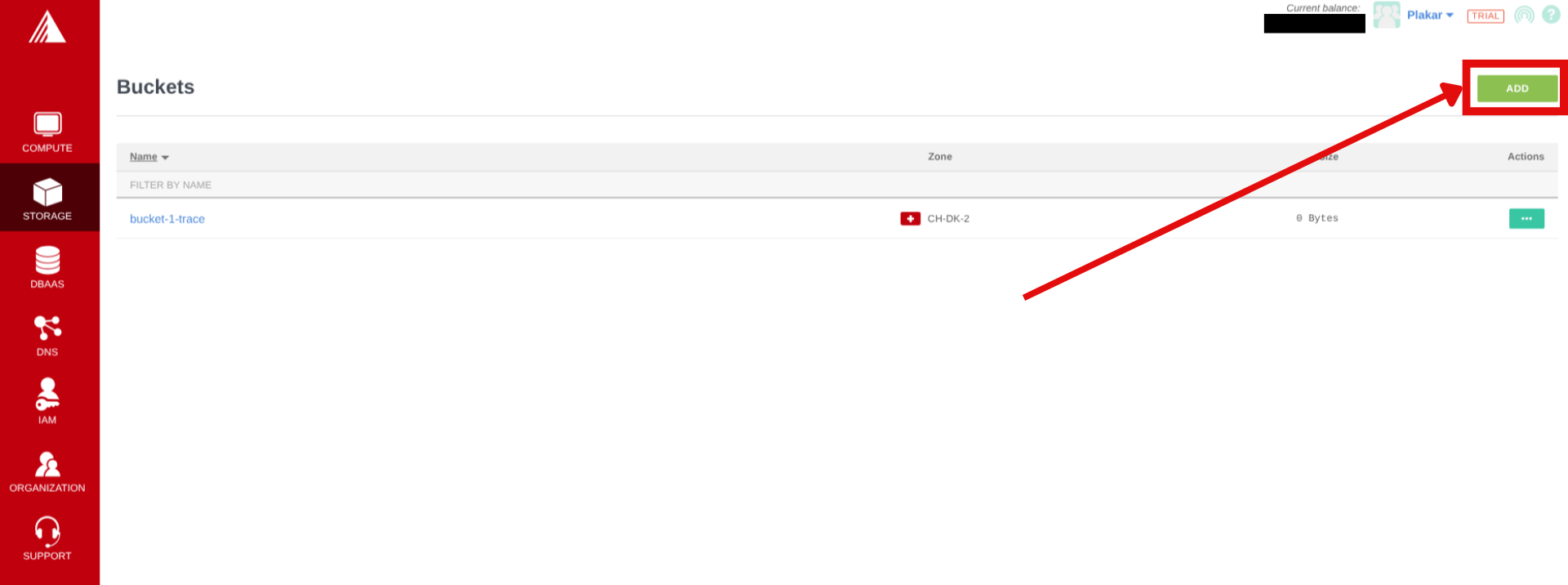
1. In the Exoscale portal, navigate to **Storage**
2. Click **Add** to create a new bucket
3. Configure:
- Zone: Select region (note the name, it'll be used to connect to the
container e.g `ch-dk-2`)
- Name: `plakar-backups` (must be globally unique)
4. Click **Add**
### Generate IAM API Keys
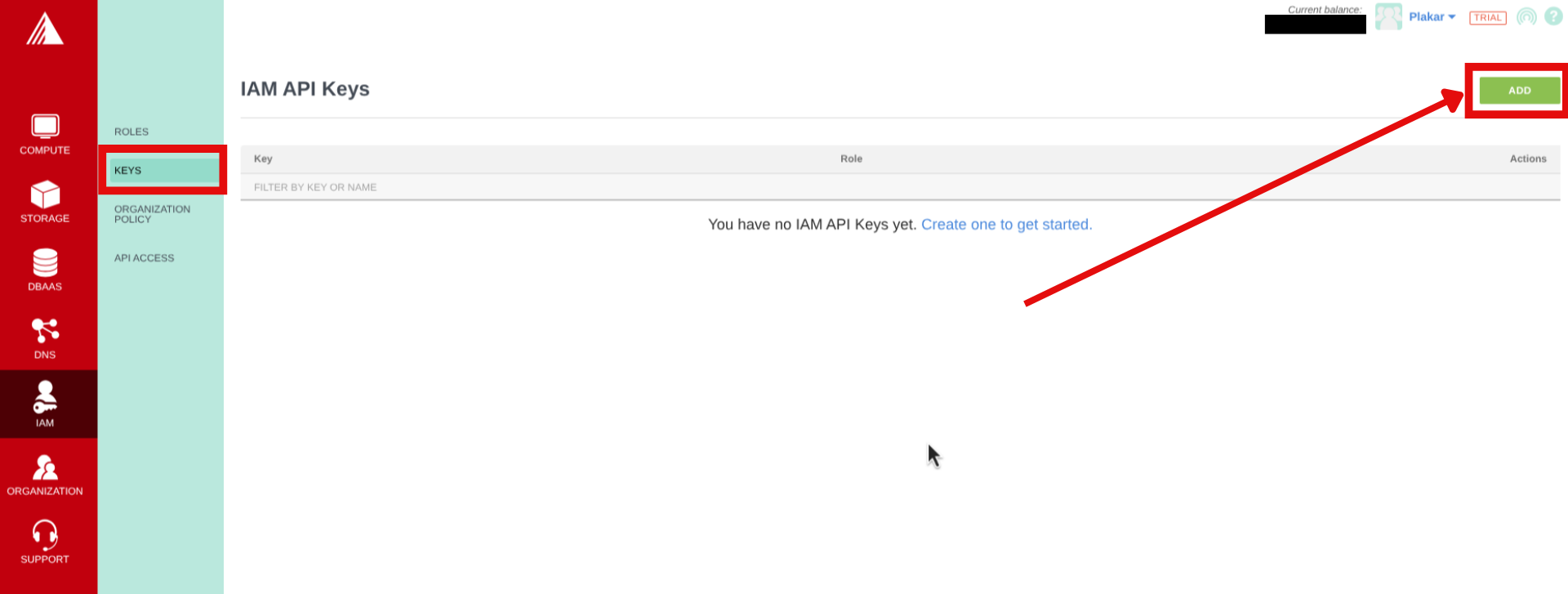
1. In the Exoscale portal, navigate to **IAM** → **Keys**
2. Click on **Add** to create new API keys, then provide a name and role, then
click **Create**.
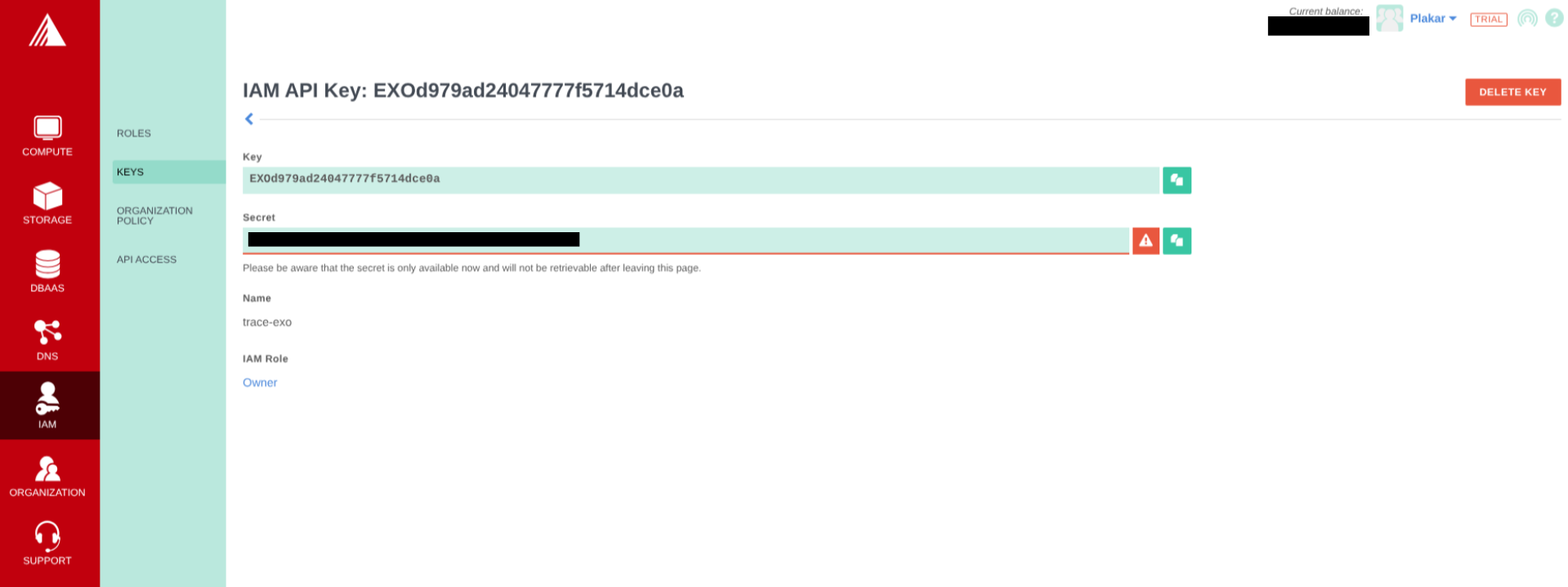
3. Copy the key and secret to a secure environment (you cannot see the secret
once you leave the page)
## Create SSH Keypair
1. Generate SSH key locally and copy the public key:
```bash
$ ssh-keygen -t ed25519 -f ~/.ssh/id_exoscale -C "exoscale-backup"
$ cat ~/.ssh/id_exoscale.pub
```
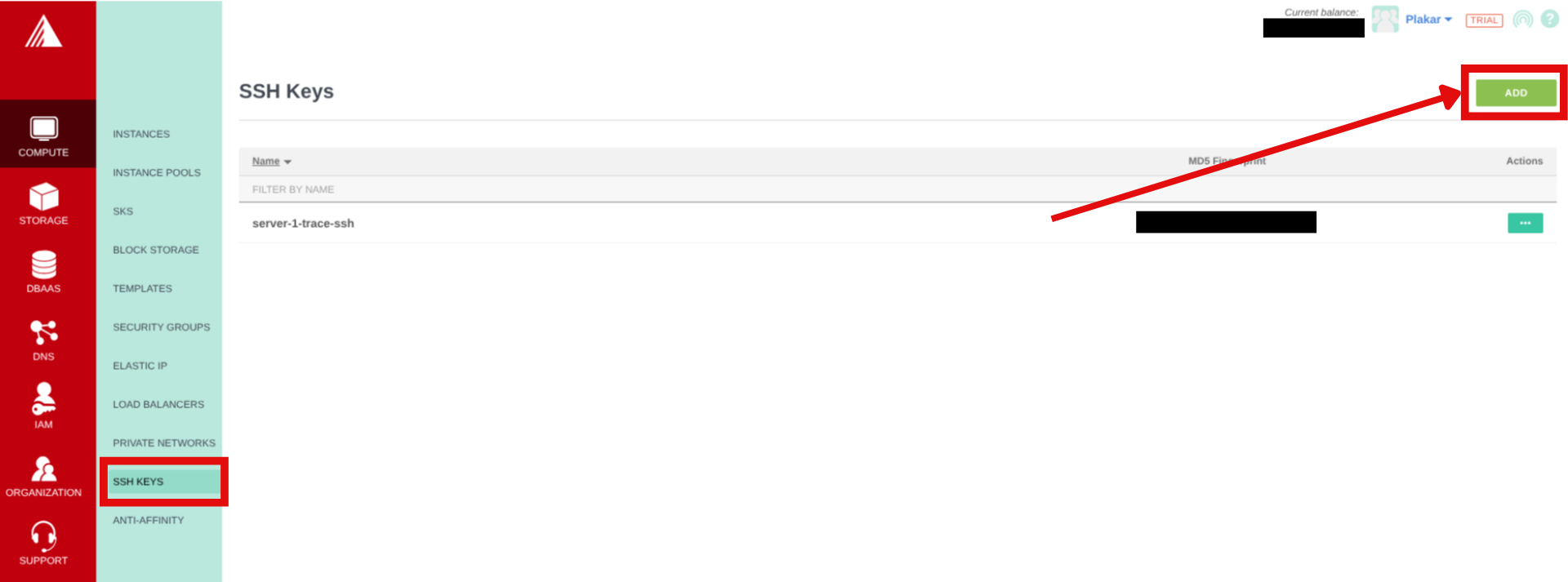
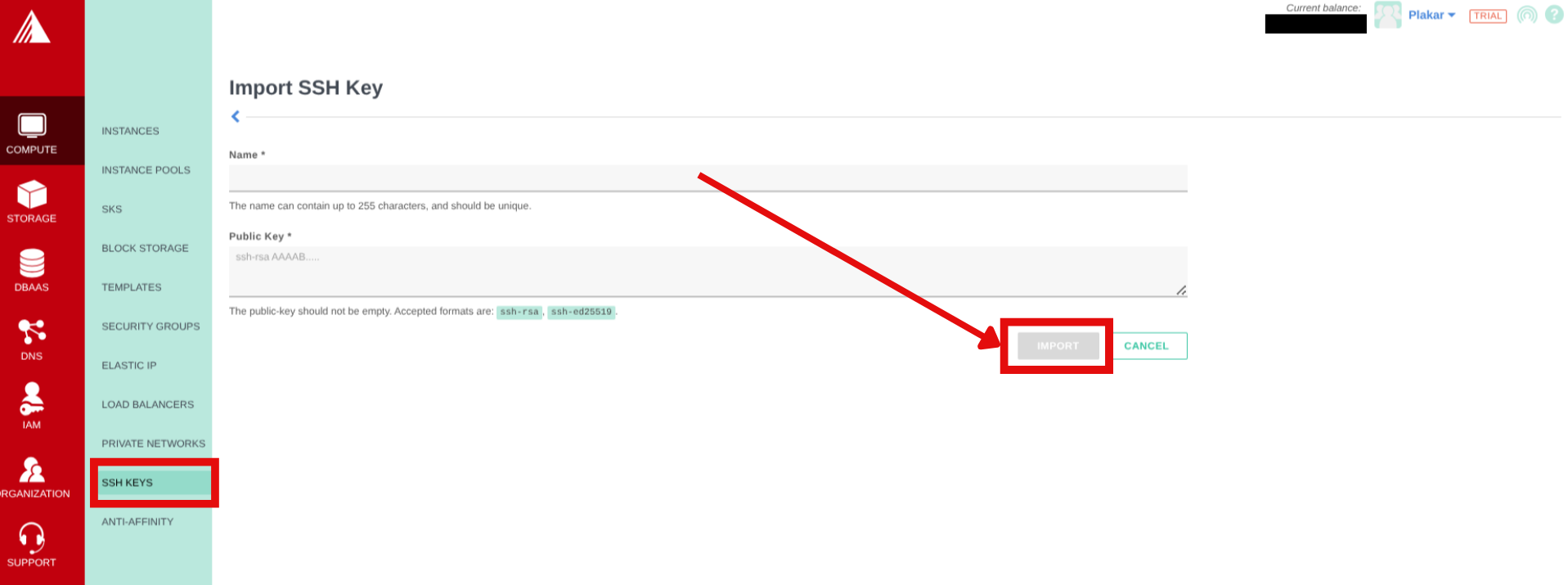
2. In the Exoscale portal, navigate to **Compute** → **SSH Keys**
3. Click on **Add** then enter a name for the SSH Key and paste in the public
key then click **Import**.
## Provision Backup Compute Instance
### Create compute instance
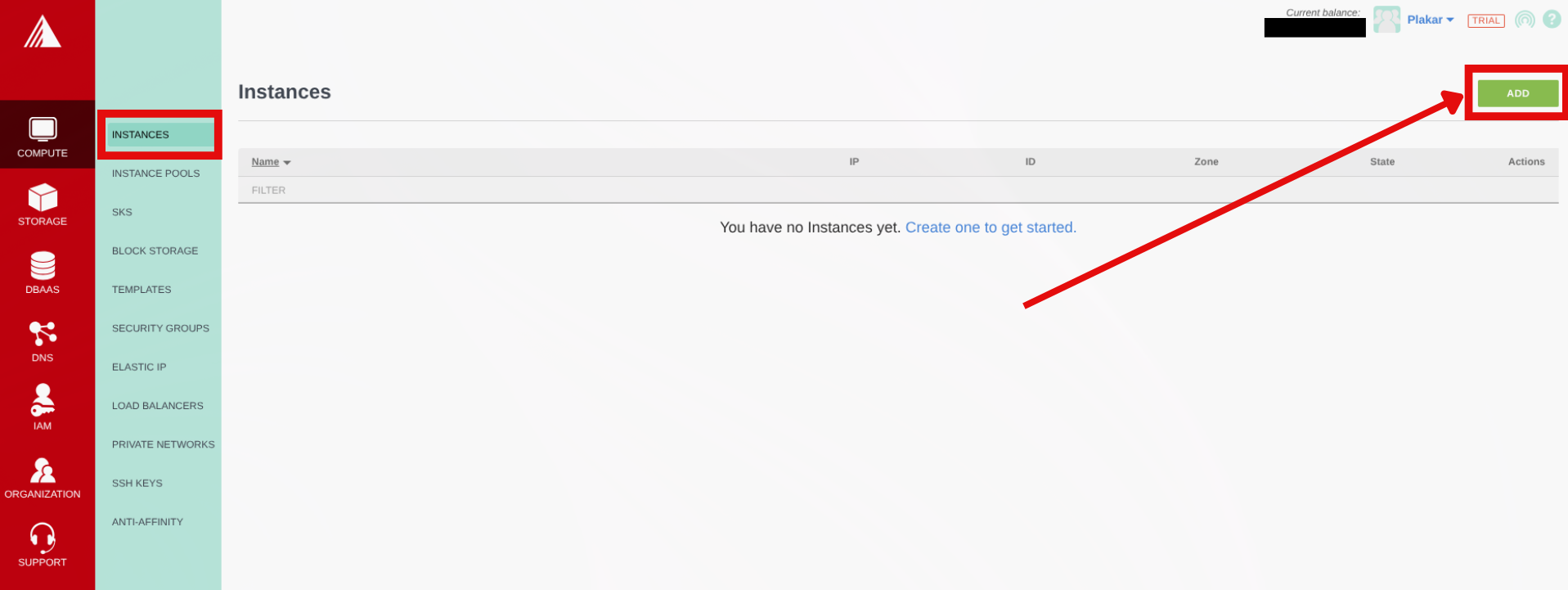
1. In the Exoscale Portal, navigate to **Compute** → **Instances**
2. Click **Add**
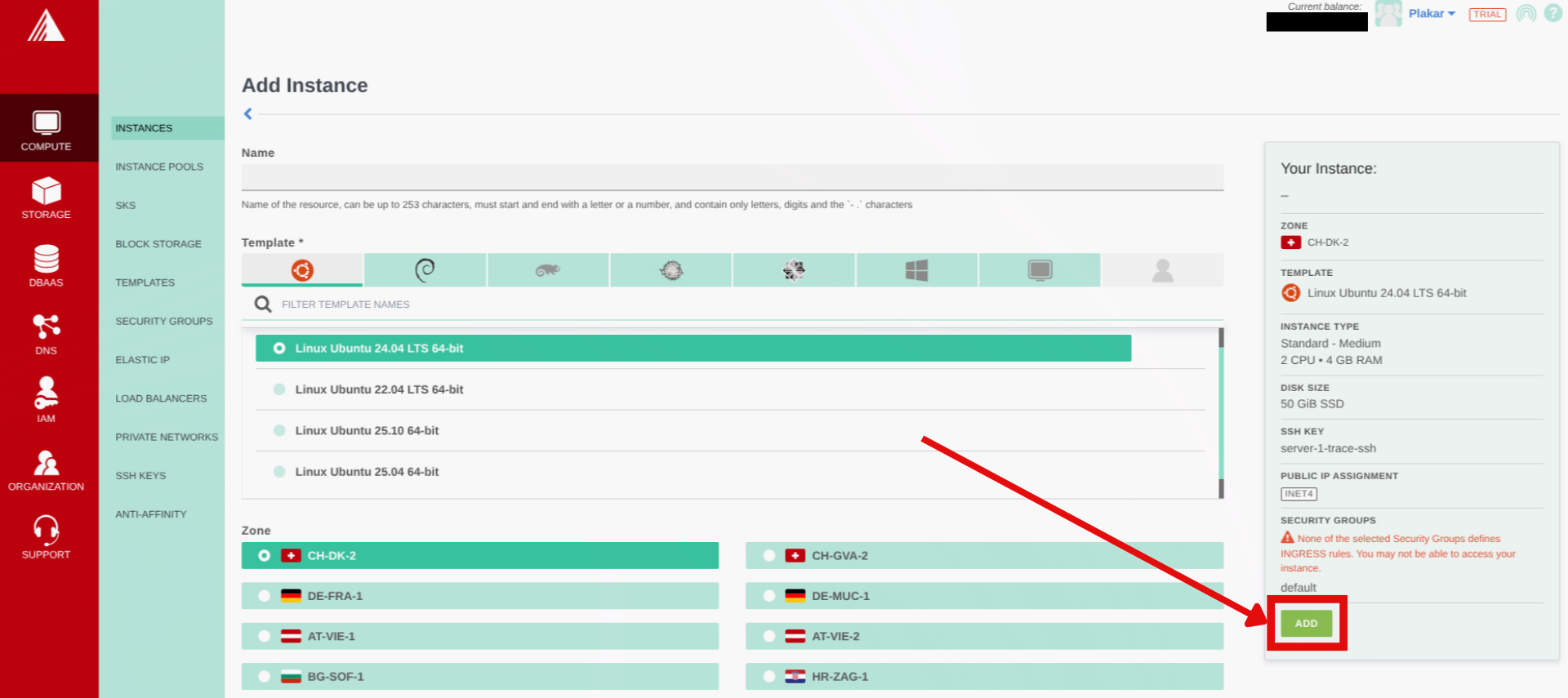
3. Configure:
- Name: `plakar-backup`
- Template: Ubuntu 24.04 LTS
- Zone: Same as Object Storage bucket (recommended for better performance)
- Instance Type: Small (2 vCPUs, 2 GB RAM) or any other you prefer
- SSH Key: Select the SSH key we created before from the dropdown
4. Click **Add** to provision your compute
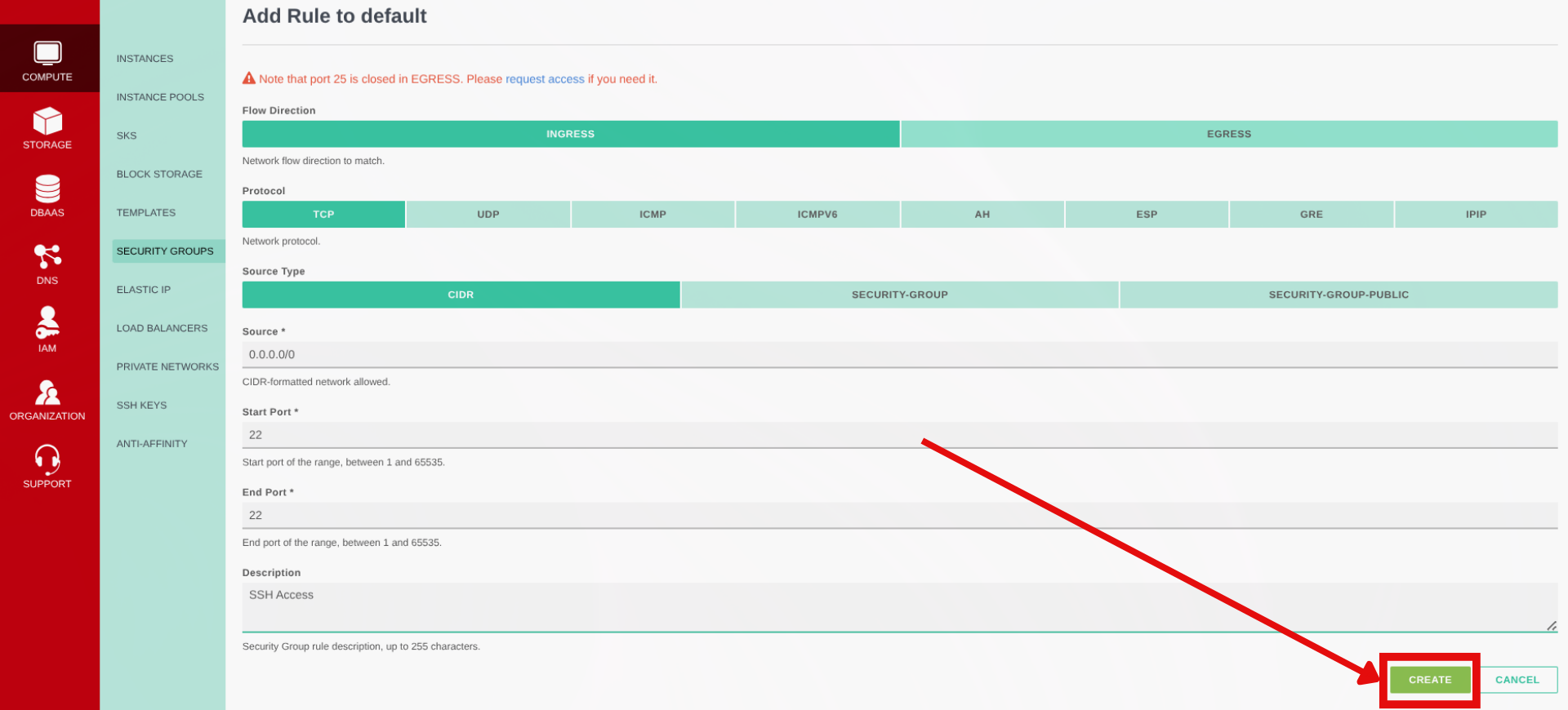
### Setup security group rules
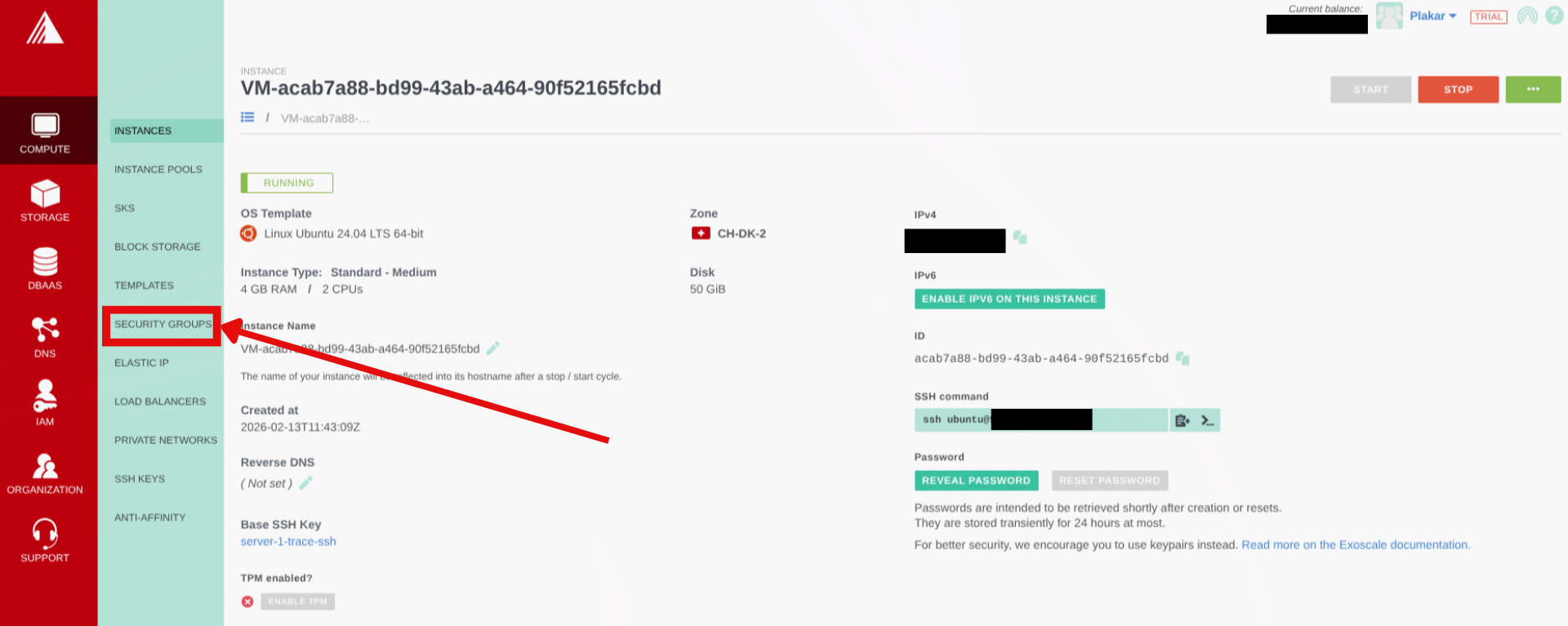
1. Once the compute is provisioned, navigate to **Compute** → **Security
Groups**
2. By default the compute will be assigned the `default` security group, click
on the actions on default then click on **Details**
3. On the next page click on **Add Rule**
4. Configure:
- Flow direction: Ingress
- Protocol: TCP
- Source Type: CIDR
- Sources: `0.0.0.0/0` allows SSH from anywhere (for better security use your
IP Address here)
- Start & End port: 22
- A description for the rule e.g. SSH Access
5. Click on **Create**
### Initial connection
Once instance is running, note the public IP and connect:
```bash
$ ssh ubuntu@
```
## Install Plakar
Install Plakar on the instance using the
[Plakar Installation Guide](../../../../../docs/community/main/quickstart/installation/)
## Configure Object Storage
### Install S3 integration
```bash
$ plakar login -email you@example.com
$ plakar pkg add s3
```
### Add storage connector
```bash
$ plakar store add exoscale-sos-backups \
location=s3:/// \
access_key= \
secret_access_key= \
use_tls=true \
passphrase=''
```
Replace:
- ``: using the format `sos-{zone}.exo.io` where zone is one we
selected for the bucket e.g `sos-ch-dk-2.exo.io`
- ``: e.g., `plakar-backups`
- `` and ``: From bucket API credentials
- ``: Strong passphrase for encryption
> [!NOTE]+
>
> Passphrase Configuring the passphrase in the store enables automated backups
> without prompts.
### Initialize Kloset Store
```bash
$ plakar at "@exoscale-sos-backups" create
```
## Configure SSH Access to Source Servers
### Install SFTP integration
```bash
$ plakar pkg add sftp
```
### Generate SSH keys for backups
```bash
$ ssh-keygen -t ed25519 -f ~/.ssh/id_ed25519_plakar -C "plakar@backup"
```
Press Enter for no passphrase.
### Copy keys to source servers
```bash
$ ssh-copy-id -i ~/.ssh/id_ed25519_plakar.pub user@source-server-1
$ ssh-copy-id -i ~/.ssh/id_ed25519_plakar.pub user@source-server-2
```
Test access:
```bash
$ ssh -i ~/.ssh/id_ed25519_plakar user@source-server-1 'echo "Success"'
```
### Create SSH aliases
```bash
$ cat >> ~/.ssh/config << 'EOF'
Host source-1
HostName source-server-1.example.com
User backupuser
Port 22
IdentityFile ~/.ssh/id_ed25519_plakar
Host source-2
HostName source-server-2.example.com
User backupuser
Port 22
IdentityFile ~/.ssh/id_ed25519_plakar
EOF
```
Test:
```bash
$ ssh source-1 'echo "Alias works"'
```
## Configure Backup Sources
Add source connectors for each server:
```bash
$ plakar source add web-server-1 sftp://source-1:/var/www
$ plakar source add web-server-2 sftp://source-2:/var/www
```
Verify:
```bash
$ plakar source show
```
## Test Backup
Run a manual backup to verify configuration:
```bash
# Single source
$ plakar at "@exoscale-sos-backups" backup "@web-server-1"
# Multiple sources
$ plakar at "@exoscale-sos-backups" backup "@web-server-1" "@web-server-2"
```
List snapshots:
```bash
$ plakar at "@exoscale-sos-backups" ls
```
## Schedule Automatic Backups
For scheduler configuration and systemd service setup, follow the same steps as
the
[OVHcloud backup server guide](../../ovhcloud/ovhcloud-as-a-dedicated-backup-server/#schedule-automatic-backups),
replacing:
- `@ovhcloud-s3-backups` with `@exoscale-sos-backups`
- `ubuntu` with your actual username if different
The scheduler configuration, systemd services, and web UI setup are identical on
any Linux machine.
## Troubleshooting
**Authentication errors**
- Verify SSH keys and user permissions on source servers
**Can't connect to Object Storage**
- Check S3 credentials and endpoint URL
- Verify passphrase: `plakar store show exoscale-sos-backups`
- Confirm bucket name and zone endpoint match
**Permission denied**
- Ensure SSH user has read access to backup directories
**Services won't start**
- Check status: `systemctl status plakar-scheduler`
- View logs: `journalctl -u plakar-scheduler` or `journalctl -u plakar-ui`
**Alternative UI access**
- Install Plakar locally and configure the same store with Exoscale SOS
credentials to access backups without compute instance connection